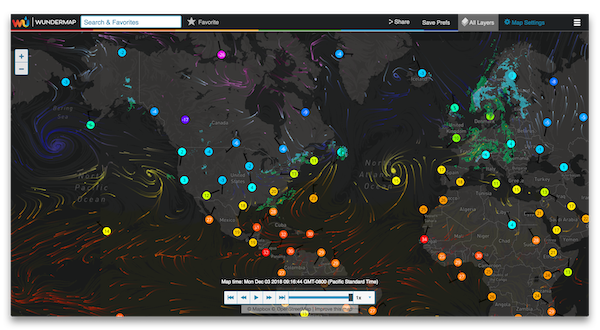
How to use the Interactive Map
This map has been designed to give you the best weather information and the most control over what you see.
Search for a Location
At any point, you can enter a city, state or zip code into the Location field to find a specific location on the map and be moved to and zoomed to that location. Locations can be saved so they are available the next time you come to the map. When saving a location, you are also saving the state of the map, so any active layers, and your current zoom level will also be stored. Any saved location can be set as the map’s starting location by clicking the star next to any saved location in the saved location dialog.
View Weather (Quick Picks)
Use the Quick Picks to choose what weather you wish to see. You can set up which items are quick picks by going into the Quick Picks dialog and choosing and ordering the weather that matters to you most. You can set more than 5 Quick Picks and use the arrows on the right and left of the Quick Picks toolbar to navigate through them. When using the map on a computer, move your mouse over any Quick Pick icon to get a tooltip that tells you what each icon represents.
Map Settings
To see a full list of available weather, go to Map Settings. We have a full array of options to choose from, from high resolution Radar and Satellite data to Weather Alerts, Tropical, Road Weather and Wildfire information. (See the full list below) Also within Map Settings is the ability to change the underlying map color.
Timeline
For most weather data, data spans a range of time. The time frame available is indicated in the timeline area. Click the play button to watch the weather animate or drag the marker on the timeline to a specific time. For most weather data, only past information is available. Radar data provides the ability to see both past and future.
Zoom
Use the Zoom buttons to zoom in or zoom out on the map. When using a mouse, the center mouse wheel can be scrolled to zoom in or out.
Legends
If you would like more information about what the colors of each weather layer mean, click on the Legend button. Legends are not available for all weather types.
Opacity Slider
Use the opacity slider to adjust the transparency of the selected weather layer. This allows you to see the map's details through the weather.
Map Layers
- Radar
Precipitation. Past and Future information available. - Satellite
Cloud Cover Observations. - Road Weather
Observations related to road conditions covering the continental United States including wind, rain, fog, puddling, ice and snow. - Wind Speed
Wind speed observations for continental United States, southern Canada and parts of Mexico. - Temperature.
Temperature observations for continental United States, southern Canada and parts of Mexico. - Water Temp
Water temperature observations. - Snow Cover
Snow depth observations for the continental United States. - Wildfire Index
Potential Risk of wildfires.
Map Overlays
- Storm Tracks
Recent storm activity by category: high winds, tornado, hail and strong. A cone indicates direction and how far the storm will travel in 60 minutes. When using a computer, place your mouse pointer over the icon on the map to see speed, direction, date and time. - Current Conditions
See current condition icons displayed across the map. Click on any icon to get detailed information such as temperature, humidity, dew point and wind. - Temperature Plots
Current temperatures are displayed across the map. Place your mouse pointer over any temperature to get the city, temperature and dew point. - Earthquakes
Earthquake activity for specified periods: last 6 hours, last 7-12 hours , last 13-24 hours and older. When using a computer, place your mouse pointer over the icon on the map to see region, date and time. - Wildfire Detection
An indication of where wildfires have been detected. - Active Tropical Tracks
Recent tropical depression, tropical storm and hurricane activity showing direction and strength (depression, storm, hurricane). When using a computer, place your mouse pointer over the icon on the map to see strength, speed, direction, date and time. -
Active Model Tracks
See a view of possible paths for current tropical systems. When using a computer, place your mouse over the paths to see the forecast model. -
Alerts
National Weather Service alerts of various categories. When using a computer, place your mouse pointer over the icon on the map for more details on the type of alert and its expiration time.